
Using Subtitle Edit to Integrate Faster-Whisper for Local Speech-to-Text
I was a bit lazy to write this post, but I recently noticed that since I moved my notes from HackMD to GitHub Pages, the most viewed article is the one I wrote previously: A Simple Test of Using WhisperDesktop for Speech-to-Text. Considering that WhisperDesktop is now somewhat outdated, I decided to update it with the current solution.
In January, I looked for some local AI tools to play with and found a better option for Speech-to-Text (STT) — Whisper Standalone.
It offers three versions:
- Faster-Whisper: A lightweight base version, suitable for users who only need simple transcription.
- Faster-Whisper-XXL (Recommended): The version primarily maintained by the author. It provides additional support for Speaker Diarization and translation features, making it suitable for scenarios that require organizing meeting minutes with multiple speakers.
- Faster-Whisper-XXL Pro: A special version provided to sponsors.
When I first tried to install Faster-Whisper-XXL, it wouldn't run properly. I suspect it might be due to dependency issues with Python audio/video packages (I was plagued by similar problems when playing with TTS before).
Later, I decided to use Subtitle Edit to integrate it, and the process went much more smoothly.
What is Faster Whisper?
Faster Whisper is a re-implementation of Whisper based on CTranslate2 (a fast inference engine that supports Transformer models).
Compared to the original OpenAI Whisper, the advantages of Faster Whisper are:
- Faster Speed
- Performance is improved by more than 4 times.
- Lower Memory Usage
- Significantly reduces VRAM requirements through 8-bit quantization technology.
For users who want to run Whisper locally without causing system lag, Faster Whisper is a better-performing choice.
Subtitle Edit
Subtitle Edit is a powerful subtitle editing software that supports the integration of Faster Whisper, allowing you to use it directly as an automatic speech recognition tool.
Integration Method
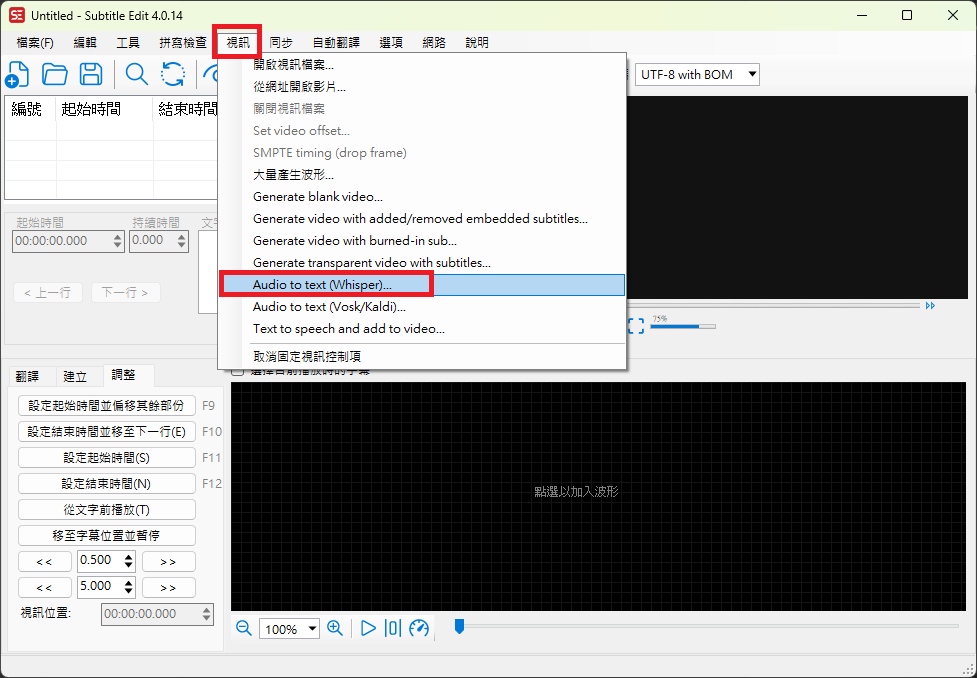
Open Subtitle Edit and select "Video" -> "Audio to text (Whisper)..." from the top menu.
If you haven't installed ffmpeg yet, the system will prompt you to download it. Just click confirm.
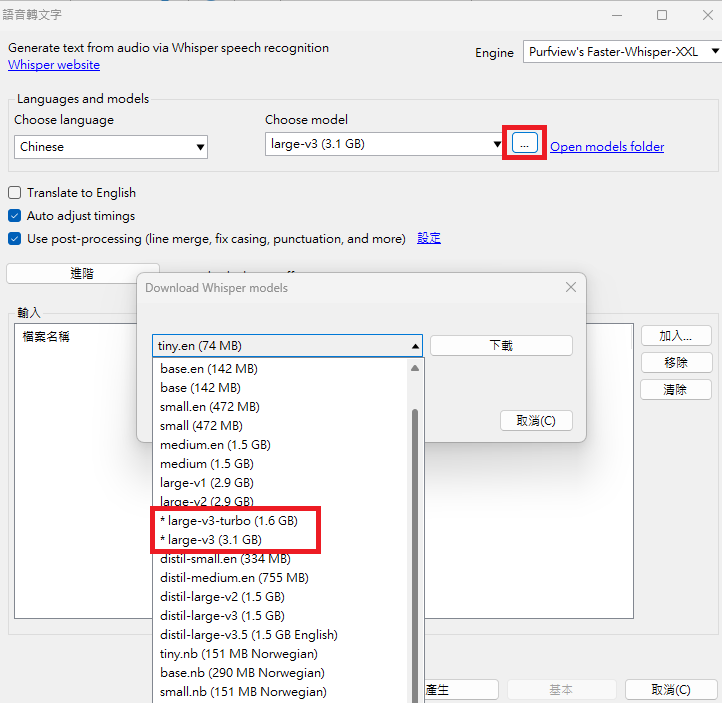
In the Engine option, select "Purfview's Faster-Whisper-XXL".
- If the corresponding component is not installed, a message to download Whisper will pop up; select download as well.
Download the model you want to use in the Choose model dropdown menu.
- It is recommended to choose
faster-whisper-large-v3orfaster-whisper-large-v3-turbo.
TIP
Model Differences:
- Large-v3
- Currently the most accurate model with the most parameters.
- Inference speed is slower and requires more memory.
- Large-v3-Turbo
- This is a "distilled" version of v3, reducing the Decoder Layers from 32 to 4.
- Although the parameters are reduced by about 48%, the speed is increased by about 8 times, and the accuracy in English recognition is almost identical to the full version.
- It is recommended to choose
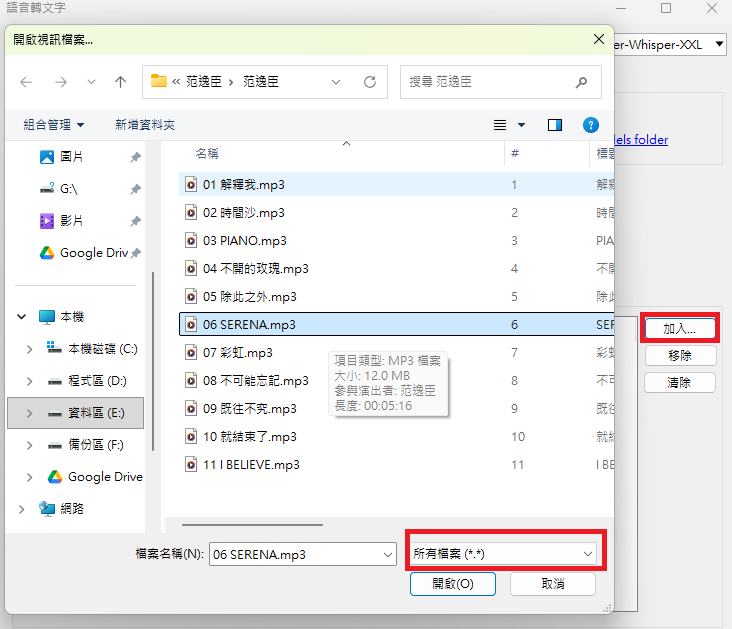
After configuration, drag and drop the audio/video file you want to convert or click to add it, then click "Generate" to start the recognition.
TIP
The file selection window may only show video files by default. If you want to convert audio files like mp3, remember to adjust the file type filter.
Once the conversion is complete, the subtitles will be displayed directly in the Subtitle Edit editing interface.
- You can proofread and modify them directly, and save them as a subtitle file with the same name as the original file.
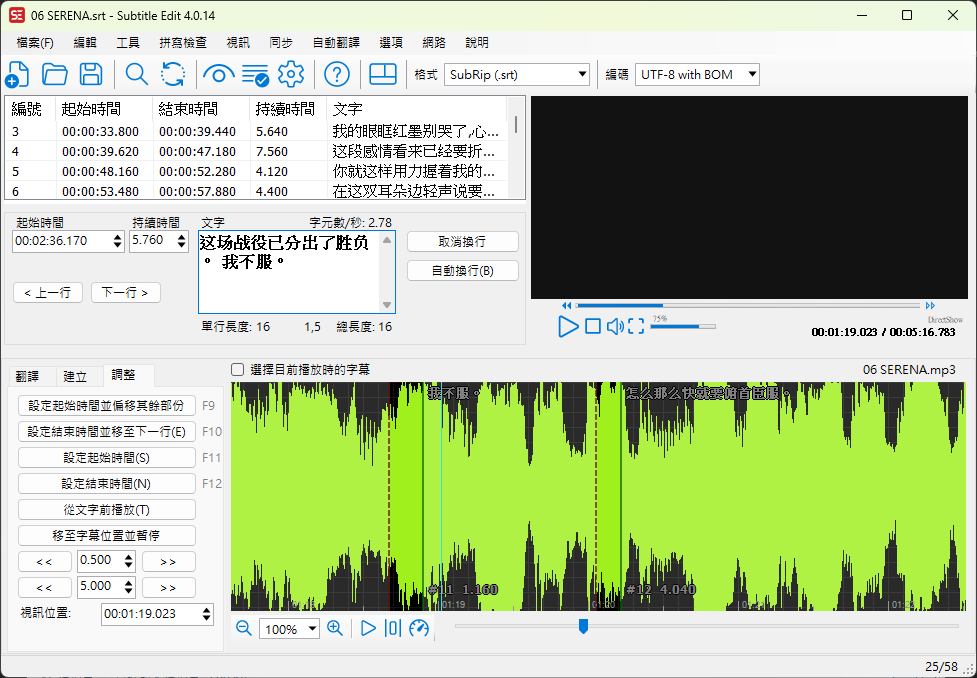
- You can proofread and modify them directly, and save them as a subtitle file with the same name as the original file.
Test Results
Using the previous WhisperDesktop test data as a baseline:
- Test Environment: PNY RTX 4070 Ti Super 16GB Blower
- Test Material: 5 minute 16 second mp3 file
- WhisperDesktop Test Data:
- Using
ggml-large-v3.bin
- Took 22 minutes and 01 seconds (and not always successful, occasionally outputting blank results).
- Using
ggml-medium.bin
- Took 11 seconds.
This time, I used Subtitle Edit integrated with Faster-Whisper-XXL for testing, with the same hardware and file:
- Subtitle Edit Test Data:
- Using
large-v3-turbo- About 16 seconds.
- Using
large-v3- About 32 seconds.
- Using
TIP
Since Subtitle Edit does not keep a time log after conversion, the data above is the result of manual timing.
Looking at the data, although the Turbo version (16 seconds) is slightly slower than the old WhisperDesktop using the Medium model (11 seconds), what surprised me more is that Large-v3 could finish in 32 seconds, which is an unimaginable speed improvement compared to the old tool.
As for the output quality, Large v3 is indeed better than Medium, but not as much as I expected. I suspect the reason is that the test file was a song, which was interfered with by background music, and the pronunciation was adjusted to match the pitch during singing, making it inherently harder to recognize. That said, given this execution speed, I think it is more than enough to be used as a local speech-to-text tool.
Changelog
- 2026-01-30 Initial document created.